
This quickstart guide describes how to create and run your first Flutter app on iOS or Android.
- Before you begin
- 1. Create your first Flutter app
- 2. Run your Flutter app
- 3. View the logs
- Next steps
Before you begin
To write Flutter apps, you will need to install the Flutter SDK. You also need to set up a Linux or
Mac development machine to run and test your apps on Android or iOS. See
Flutter Setup for instructions on how to set up your development environment.
1. Create your first Flutter app
To create a starter project, open a terminal and run the flutter command .
Here is an example:
1 | $ flutter create myapp
|
The above command creates a Flutter project directory called myapp that contains a simple demo
app that uses Material Design.
In the project directory, the code for your app is in myapp/lib/main.dart.
2. Run your Flutter app
Use the flutter run command to run your Flutter app on all connected
devices and simulators. (The flutter devices command will list connected devices and
simulators.)
To run your app from the command-line:
- Open a terminal and change directories to the root of your app (the same directory that
contains thepubspec.yamlfile for your project). - Run the following command.
1 | $ flutter run
|
Alternatively, if you are using the Atom editor with the
Flutter package, you can start your Flutter app by selecting
the /lib/main.dart file in the project and pressing the Run App shortcut in the main editor
screen. The shortcut depends on the operating system of the development machine you are using:
- Linux:
Ctrl+R - Mac:
Command+R
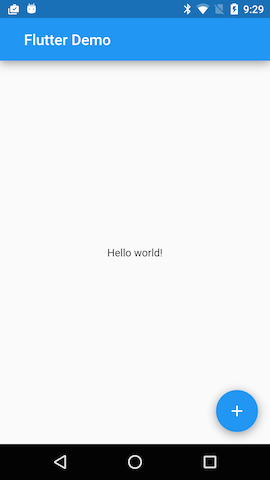
If everything works, you should see your starter app on your Android device or iOS Simulator.
3. View the logs
The flutter logs command lets you see textual output from your app, including print
statements and unhandled exceptions.
To start streaming the logs when your Flutter app is running on an Android device or on the iOS
Simulator, run this command:
1 | $ flutter logs
|
To avoid confusion from old log messages, you can use the flutter logs --clear option to clear
the logs between runs.
Next steps
Please reach out to us at our mailing list. We’d love
to hear from you!
You might also want to check out our Tutorial and our
Debugging guide.
Happy Fluttering!